How to Open DCM Files on Windows
DICOM Files can be easily accessed and opened on Windows devices. Keep reading to learn how.


In the following article, we’ll help you understand what DCM files are exactly, and show you how to get a DCM file open on your Windows PC in no time!
Understanding What a DCM File is
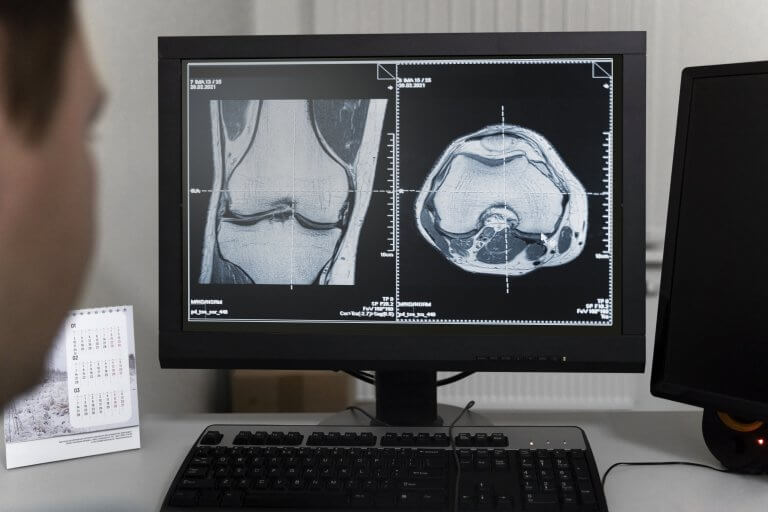
A DCM file, short for DICOM (Digital Imaging and Communications in Medicine), is the standard format for handling, storing and transmitting images and related information in medical imaging. DICOM files are used in many medical imaging methods including Magnetic Resonance Imaging (MRI), Computed Tomography (CT scan), Ultrasound, PET scan and even the humble single two-dimensional image X-ray.
These files not only contain the images themselves but also important embeded information on things such as the patient, image type, device details, and scan parameters which are all vital for the medical practitioners and radiologists who interpret them. This comprehensive integration makes DCM files indispensable in healthcare settings, facilitating the sharing and analysis of medical images across different systems and ensuring continuity in patient care. But it can also make them quite complicated for the everyday person to look at.
DICOM File Accessibility & Viewing
As a widely used and standardized file format, DICOM files are highly accessible and can be downloaded from several sources on the internet. 3DICOM’s web-based online viewer and Mobile App give you full access to upload your own personal DICOM file into the software for viewing.
If you do not have access to a DICOM file or a DICOM image provided to you from places such as a medical or educational institution, or even a doctor, there are a range of other locations that anonymized DICOM scans can be downloaded from for education and research purposes.
Need a DICOM file sample to get started?
The 3DICOM website has several medical imaging samples that you can download onto your device to explore for FREE in 3DICOM software. These scans can be accessed via the DICOM Library.
DICOM files can also be downloaded from a number of Open Source repositories such as The Cancer Imaging Archive (TCIA), The National Institute of Biomedical Imaging and Bioengineering (NIH) or the Harvard University Dataverse.
Already have your own .dcm (DICOM) file to open?
You may have recently had a medical scan such as a CT or MRI and have been provided a .dcm file by your healthcare provider on CD or USB, that you are looking to open. No problem – we’ll run you through what you need and how to get it open to view your medical scans. With 3DICOM Patient you can even view them in 3D which makes it significantly easier to understand what you’re looking at.
Other sources associated with radiology and medical imaging also may provide you with a DICOM image file. These resources supply you with a number of DICOM studies that are downloadable; both free and paid accompanied by the DICOM metadata, different series and the scan itself. These will typically be a CT scan, MRI scan or a PET scan.
What you need to open DCM files on Windows
To open a DCM (DICOM) file on a Windows computer, you will need specific software designed to read and display medical images. These programs can handle the special format used for storing complex medical data and images.
3DICOM Patient is one of the latest web-based DICOM viewers available, built specifically to improve patient accessibility to thier medical scans. With its DCM file open feature and accompanying information, and is enhanced by educational AI features designed to improve patient understanding.
Let’s get started.
View your medical imaging
anywhere, anytime!
anywhere, anytime!
3DICOM Patient Online Viewer & Mobile App
Easy Interface | AI Tools | Secure Encryption

What to expect when opening your DICOM files on Windows
Due to their versatility, DICOM files are inherently complex. As already mentioned. They not only store the image itself but also a wealth of associated metadata including patient details, imaging parameters, and diagnostic information. This metadata enriches the file, enabling comprehensive case management and continuity of care across different healthcare providers. However, this complexity can also make DICOM files daunting for non-medical persons.
Also, due to the number of different imaging techniques or scan types such as CT, MRI, and X-Ray, each having its own method of capturing data, the variability in how images are captured and stored means that no two DICOM files are identical in terms of image count and type. This results in some image types, like CT scans, offering more robust sets of image slices that can be stacked sequentially to create high-quality 3D renderings. In contrast, single two-dimensional images from X-rays are typically only suitable for viewing in 2D.
This should be taken into consideration when viewing .dcm files in DICOM viewers like 3DICOM which is capable of transforming DICOM images into immersive 3D vizualisations.
How to open DCM files on a DICOM Image Viewer Windows
1. Download your DICOM scan
Once we have accessed the DICOM Library, we will need to select download scan. After we are directed to the file with your selected DICOM scan, we will need to select download in the top left.
Please be mindful of the download time. Each scan differs in size and complexity, so please be patient if your scan is taking a while to download. Downloads will be typically be placed on your computers desktop, downloads file or OneDrive. If you have designated a specific location on your device as to where downloads will be located, note where this is!
Sometimes when a file is downloaded onto our computer, we will have to unzip the contents of a folder.
2. Open 3DICOM through the Singular Launcher
Once your DICOM scan has been downloaded, now we have to open the DICOM software otherwise we can not visualize our scan in 3D! If this is your first time opening 3DICOM, remember it is opened through the Singular Launcher. The Singular Launcher is our gateway to 3DICOM!
3. Import your scan
First, we need to select the ‘Import DICOM’ button in the top right. Once this is selected, a drop down window will appear displaying all of your computers folders and file locations. This is why remembering where you saved your scan file is important!
Once you have located your scan folder, simply click on it and press ok. Depending on your scan size and number of slices, the image processing time within the DICOM viewer will differ, however this process is very fast and efficient. You may also have different series to select. These will be located in the series tab once your scan is selected.
If you are having trouble loading in a scan, which is rare, please make sure the scan you have downloaded is not corrupted or expired. Scans that are loaded in also must be unzipped before importing into the DICOM software.
If you still can not load in your scan, please lodge a support ticket here.
Continue Reading: Why Is It Difficult to Find a Good DICOM Image Viewer for Mac?